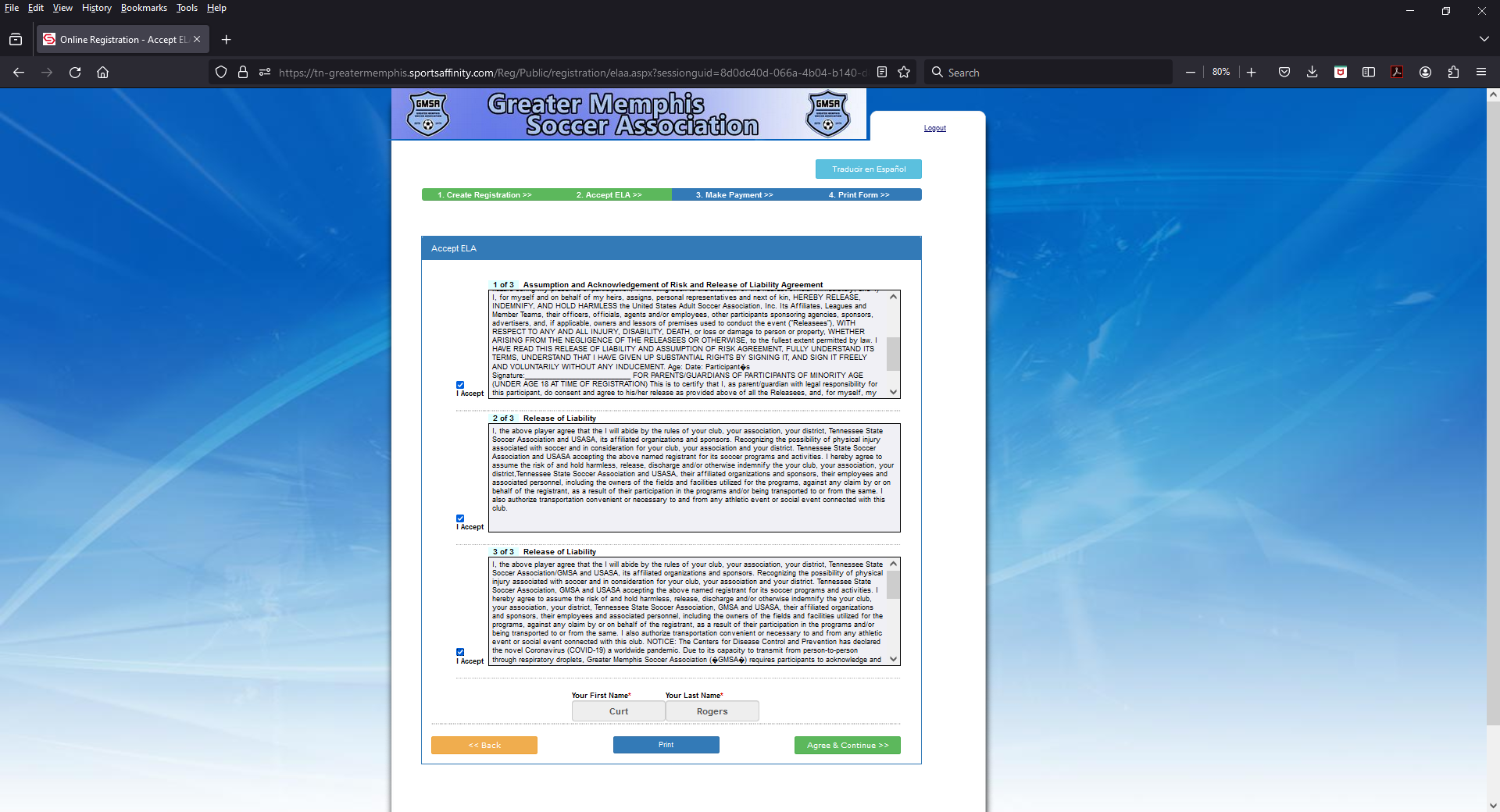
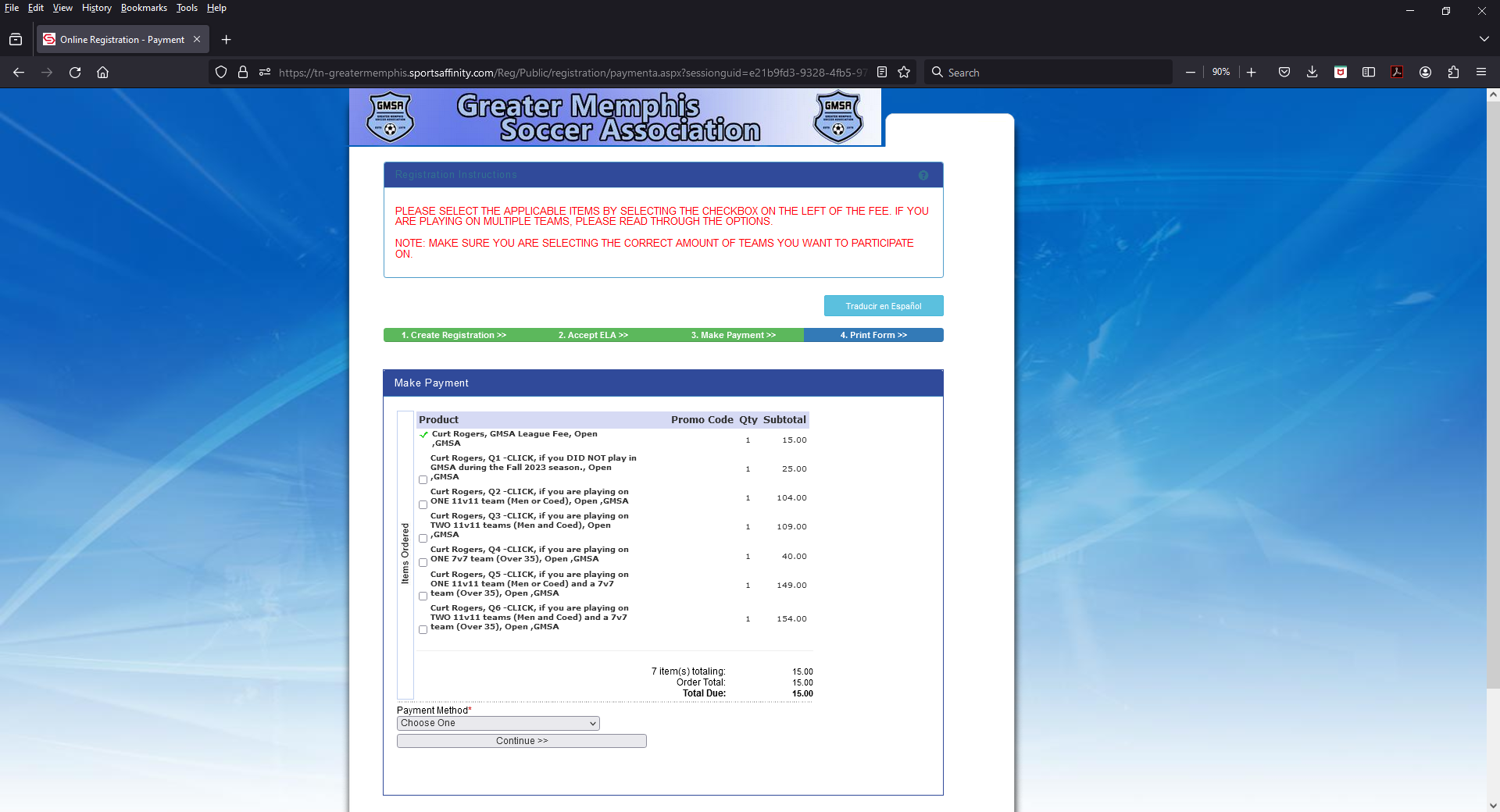
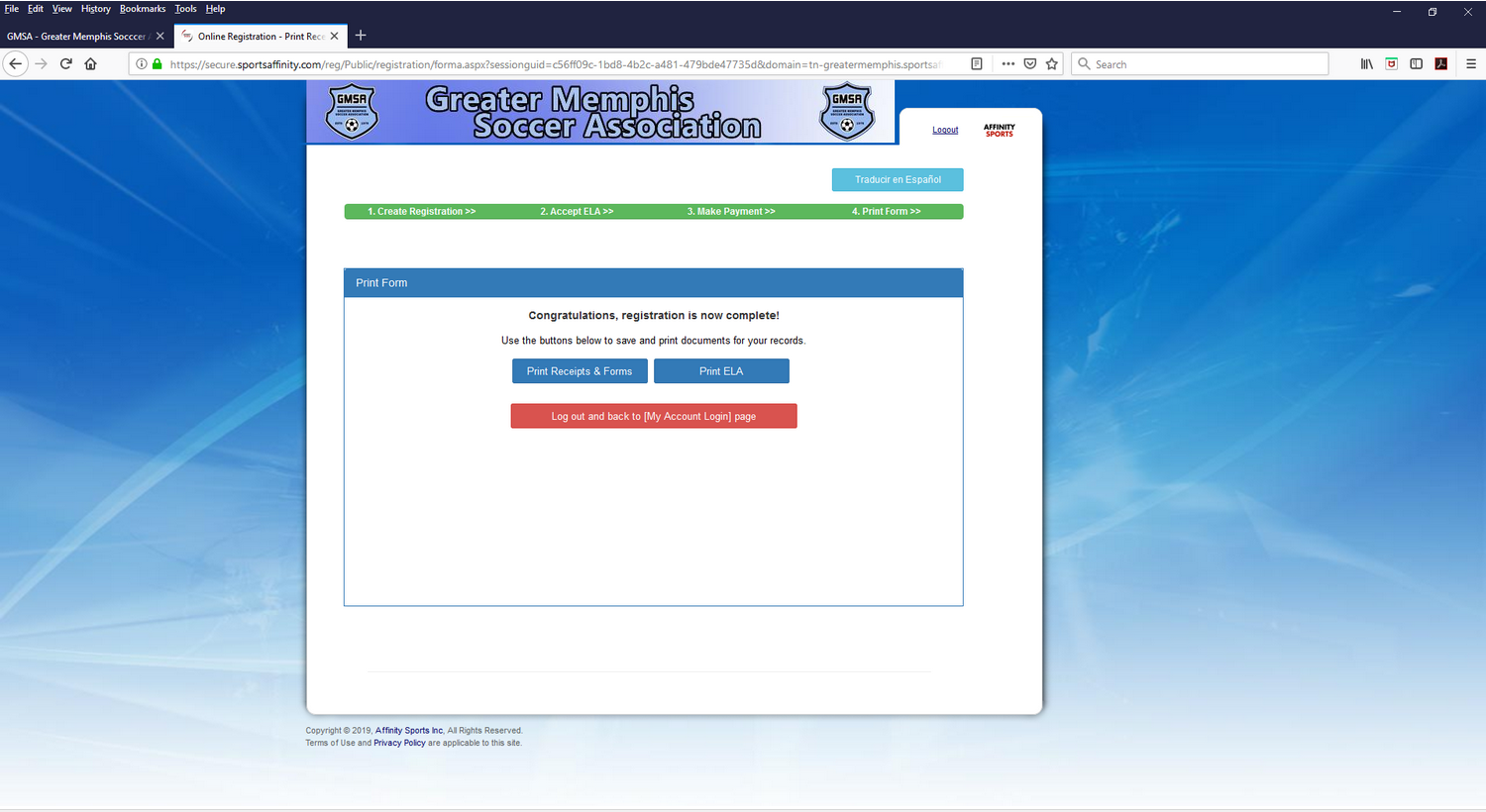
Player Registration - Primary
(Page 2)

Here are some important things to look for as you go through the registration process with our new registration system PlayMetrics.  (All photos/screen shots may be clicked to enlarge):
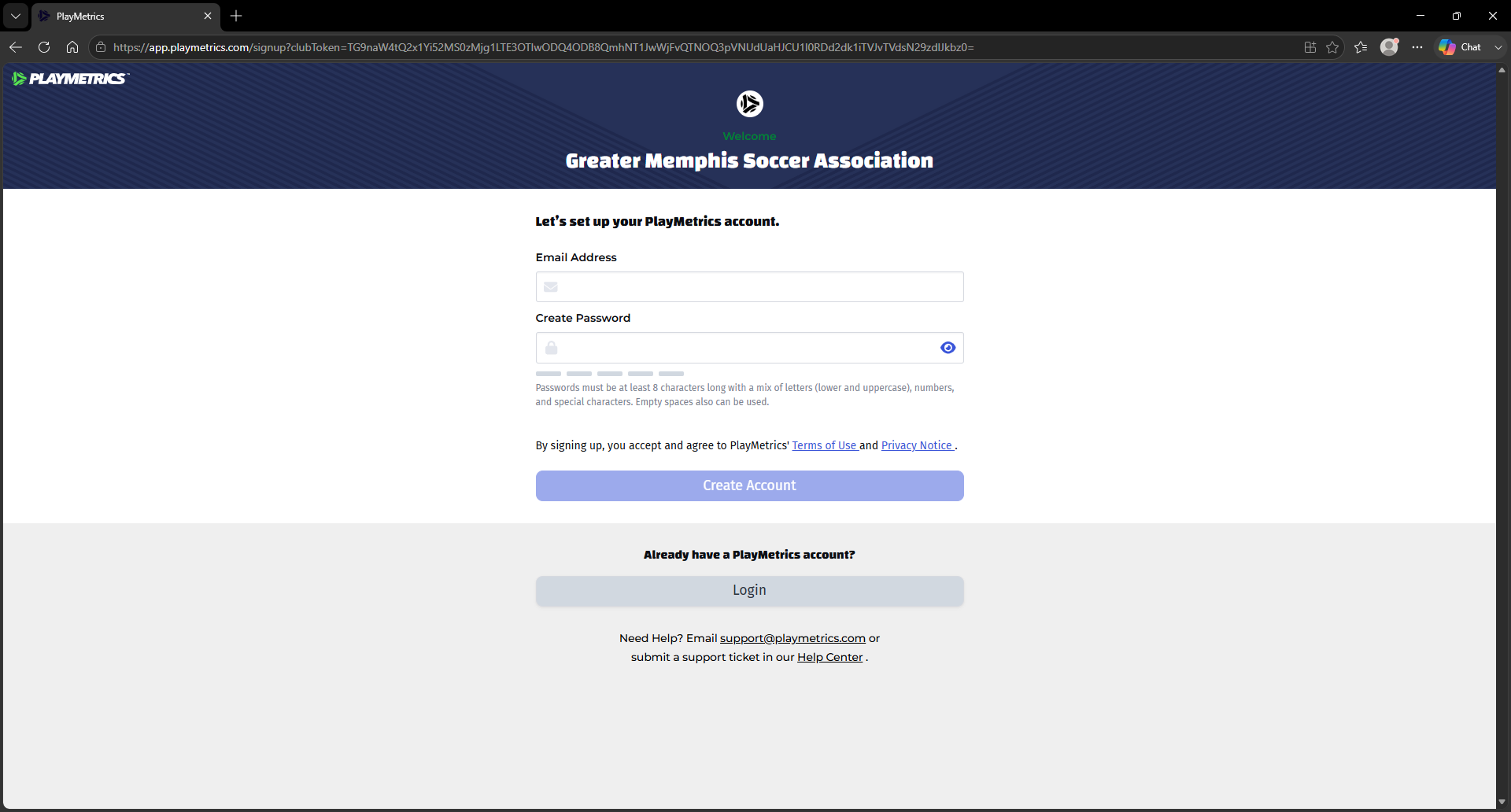
Sign On Screen
  • Create your account with your email address and password, or sign in if you already have an account.
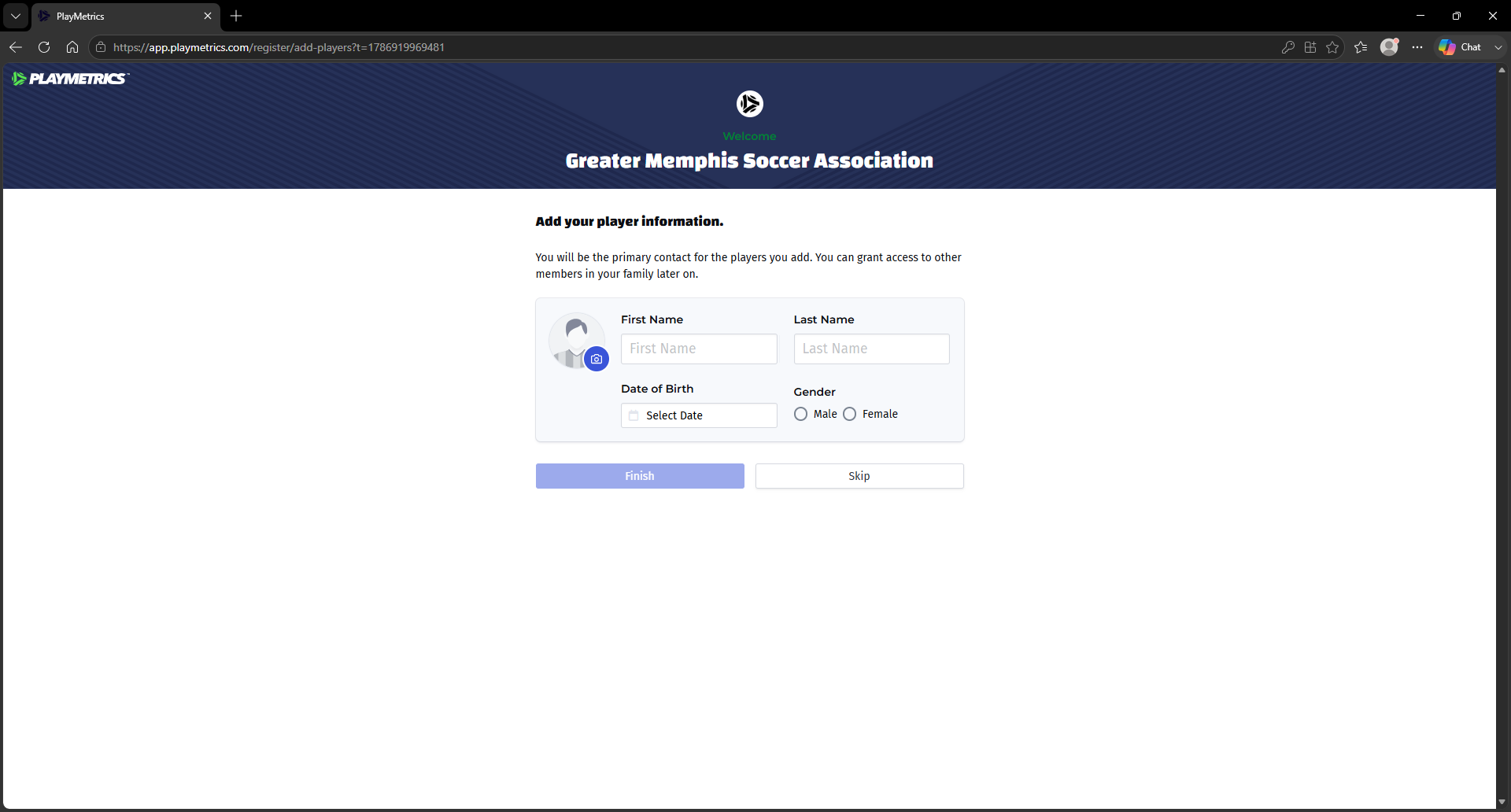
First Registration Screen
  • Add your name, birthdate, and other required info to finish creating your account.
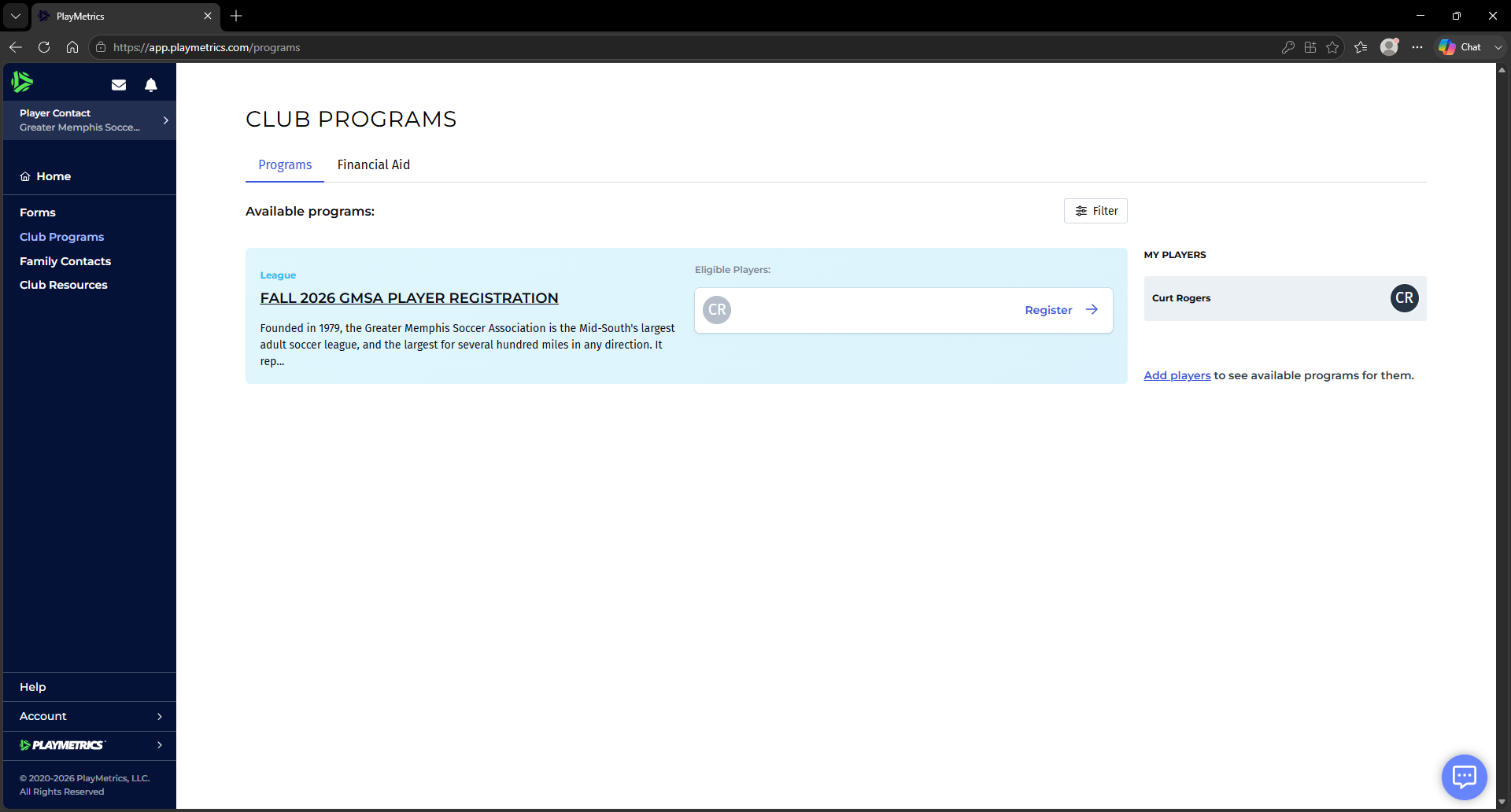
Second Registration Screen
  • On the next screen, click the blue "register" link.
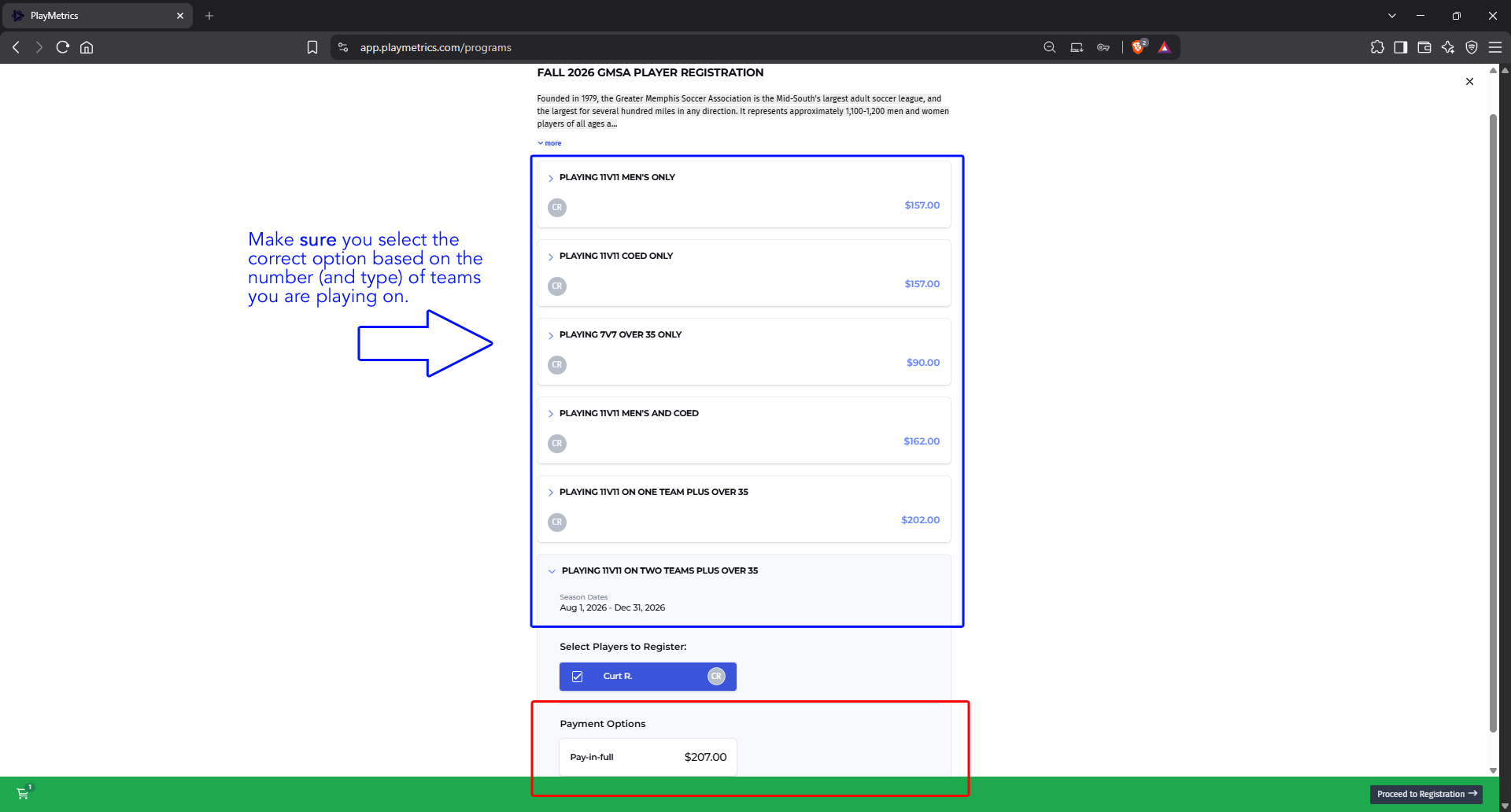
Third Registration Screen
  • Next, click the CORRECT payment option based on the number (and type) of teams you're playing on this season.  Once you select the number of teams, the total for that selection will appear at the bottom.  Click "Proceed to Registration".
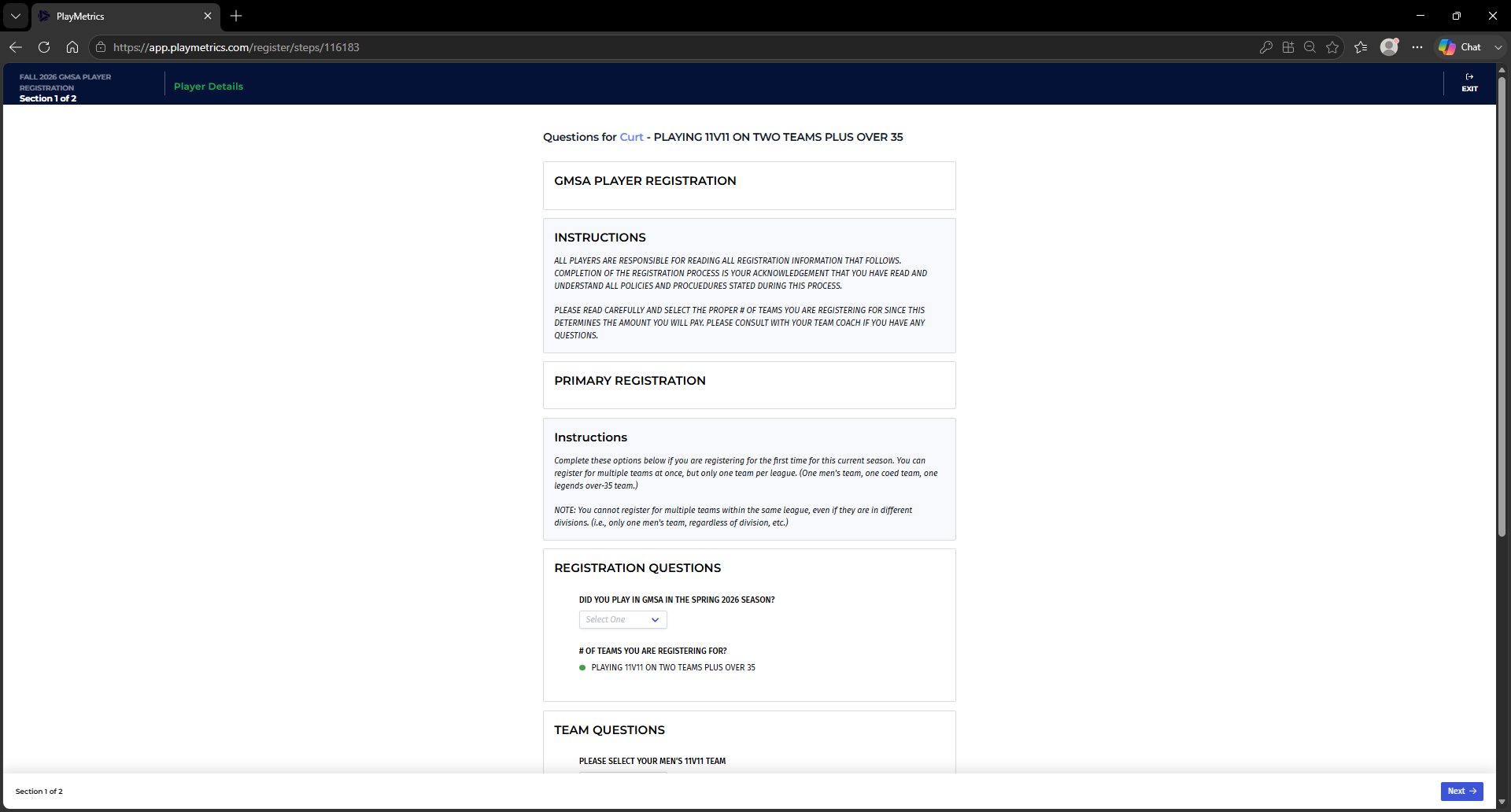
Fourth Registration Screen (Top)
  • The top of the next screen will give you further instructions, and the question regarding whether you played during Spring 2026.
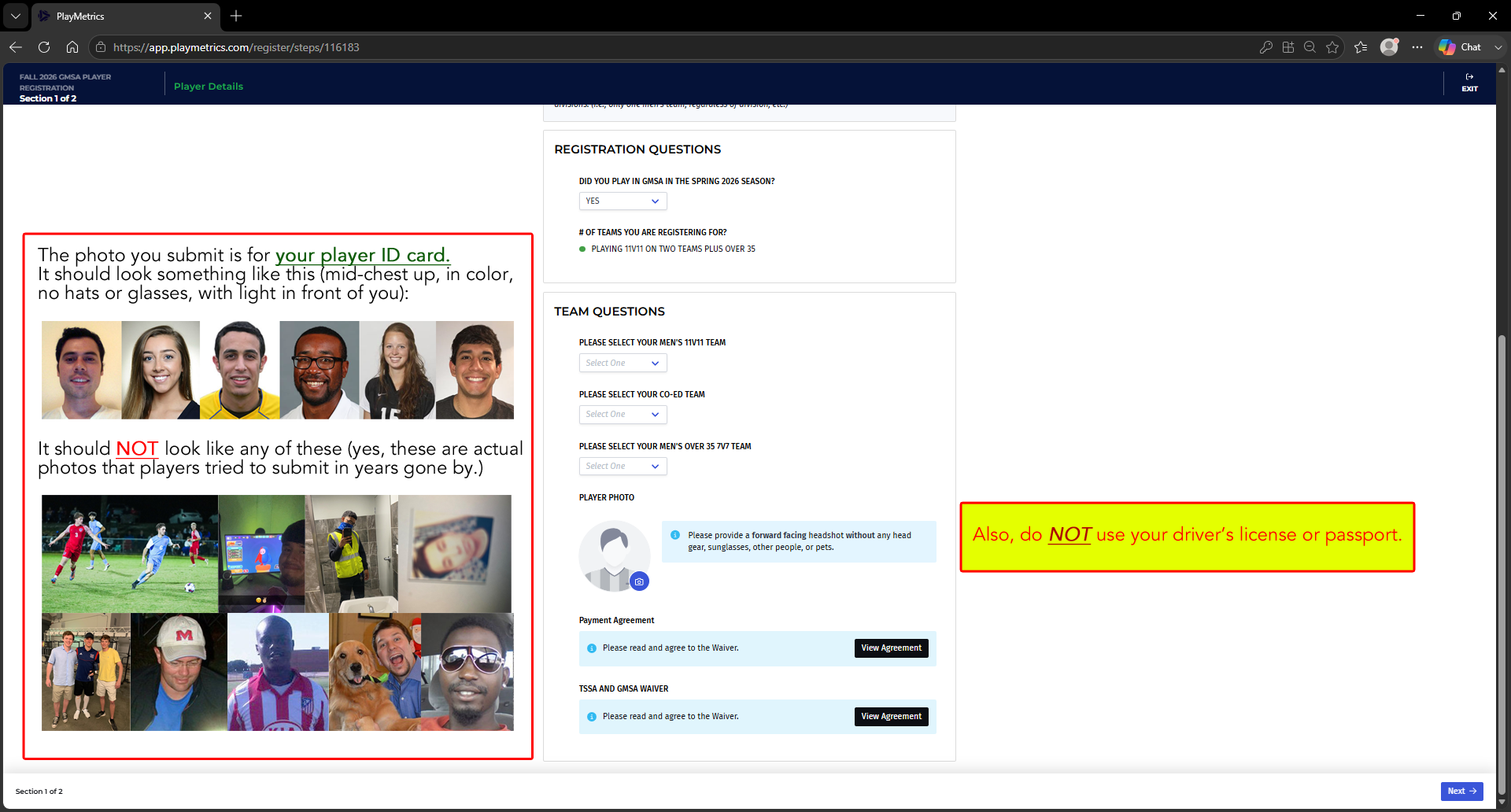
Fourth Registration Screen
  • The bottom of this screen will allow you to select your teams (or "not applicable" if you are not playing in that division), and will allow to load your player card photo.  Reminders about photos:
When you upload a new player card photo, it should look something LIKE a passport photo, but it shouldn't actually BE part of an existing passport...it should look similar to the below examples:

* Plain/White/Neutral background or plain/blank wall
* Facing the camera, from at least the mid-chest up
* Light coming from in front of you
* In color, with no sunglasses or hats

The easiest thing to do is just take out your phone and take (or have someone take) a photo of your head/face, from the mid-to-upper chest upward, against a blank wall.  That's all you need to do.
Photos should NOT include anything that looks like the below examples.  (All of which, incidentally, are photos that people tried to load previously.)

* DO NOT use action shots (we know you play, this isn't the time/place to prove it.)
* DO NOT have your head halfway off the screen with the light behind you.
* DO NOT have your face covered by your phone and/or a mask.
* DO NOT load something so blurry that we're not even sure it's human.
* No group photos (we have no idea which one you are).
* No hats or sunglasses.
* You need to actually be looking at the camera.
* No pets in the photos. (This is for an ID card, you're not auditioning for Stupid Pet Tricks.)
* Make sure the sun and/or lighting is coming from in front of you, not from behind you, especially if you have a dark complexion, as the shadows can make it difficult to clearly see your face.
Do NOT load any picture that looks like this.

Lastly, DO NOT USE your DRIVERS LICENSE/PASSPORT, or the photo FROM your drivers license or passport in this process. 
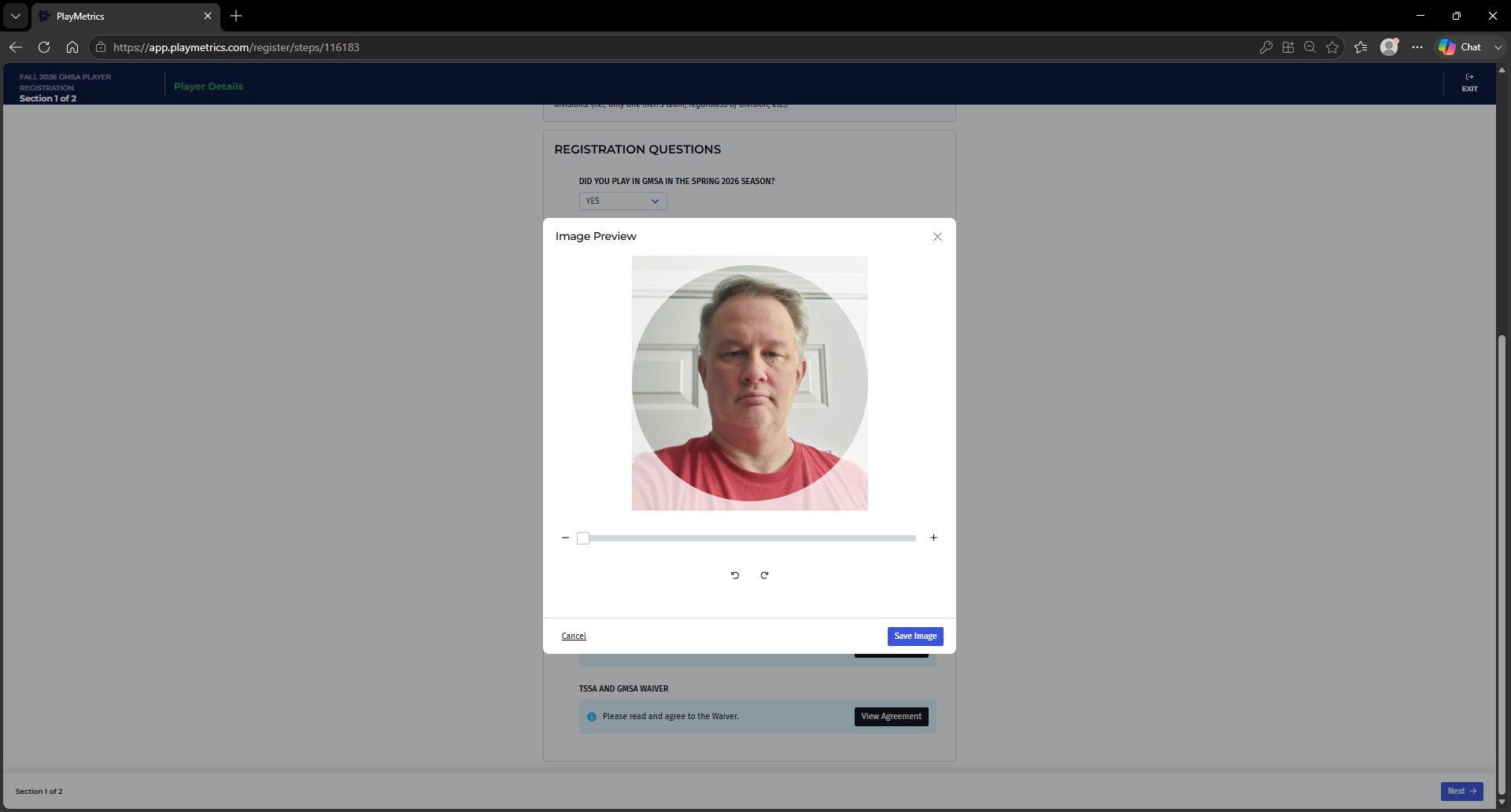
Fifth Registration Screen (Photo Uploader)
  • The next screen is the photo uploader.  Once you have an appropriate photo, make sure it is centered and rotated correctly.  Save the image, and click "Next".
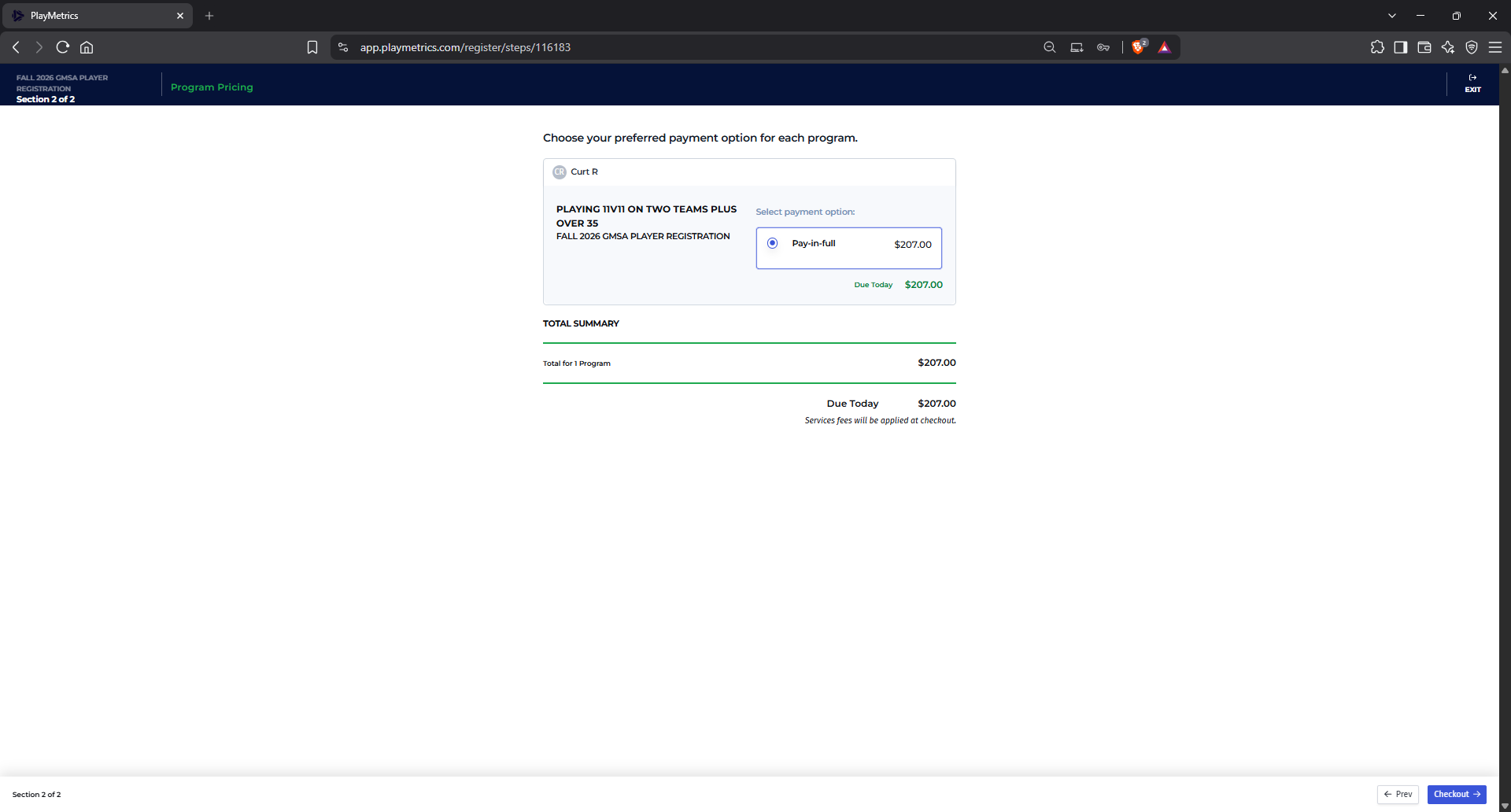
Sixth Registration Screen (Payment)
  • Lastly, you will see the payment screen. The total listed should correspond to the amount shown earlier.  NOTE: Your final checkout price will also include a small card processing fee.
  • Click the "Checkout" button, and enter your credit/debit card information.
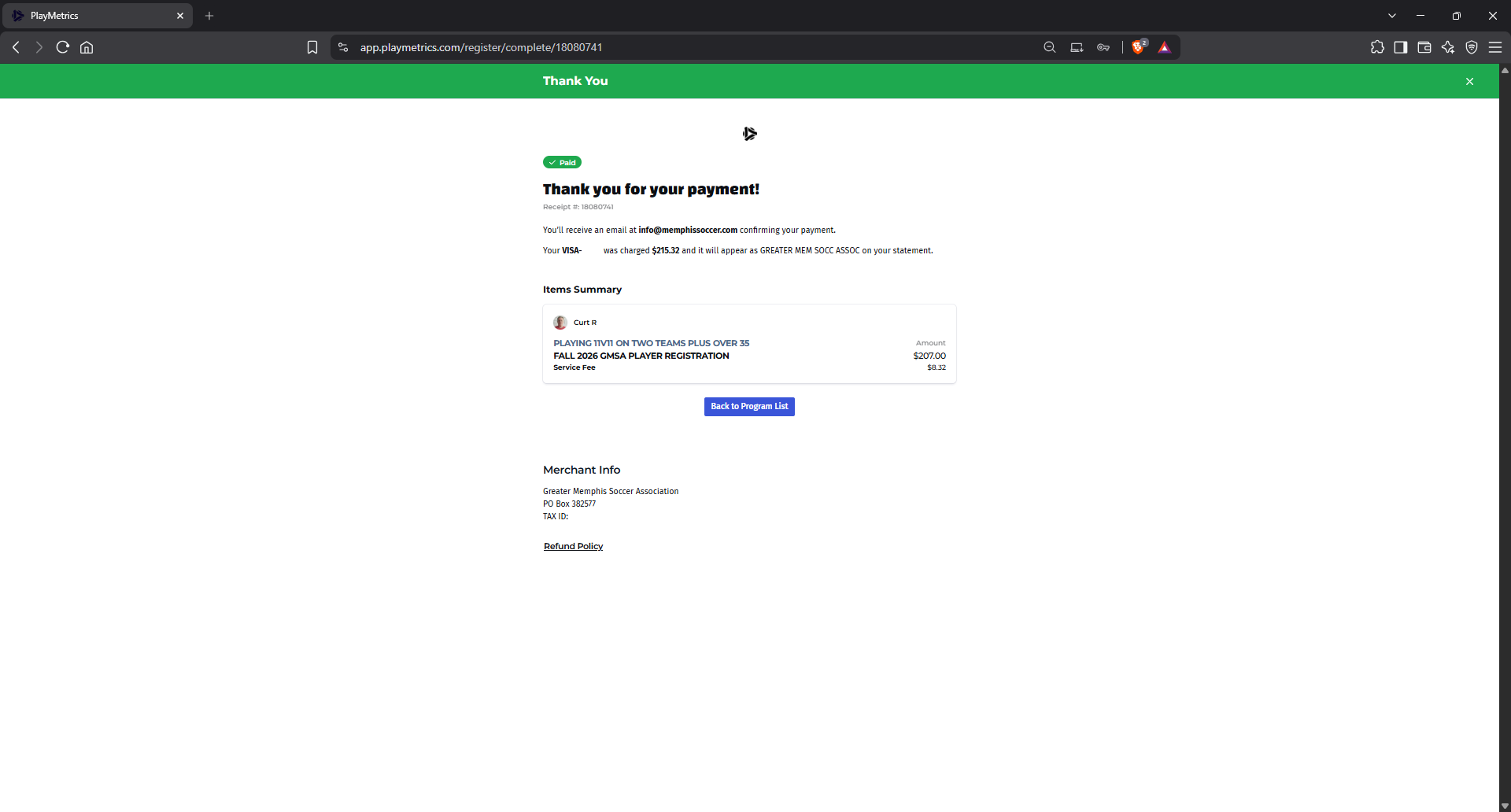
Last Registration Screen (Confirmation)
  • Once you submit your payment information, you should get a confirmation screen that looks like the screen above. Your registration is complete.
  • Click here to continue.
    Registration for the Fall 2026 season is now open.
    Deadline to register for guaranteed first-match eligibility is Friday, August 21st at 12:00 noon.
Mailing Address:

GMSA
PO Box 382577
Germantown, TN  38183

Contact GMSA

General Email:  info@memphissoccer.com
Registrar:  registrar@memphissoccer.com
Treasurer:  treasurer@memphissoccer.com